Team members - Forms and tasks
 Updated
by
Jennifer B.
Updated
by
Jennifer B.
Custom forms can be used in any number of ways to improve processes or a customer’s experience; for example, forms can be used to create surveys that are sent out to assess an inspection after it is completed.
Assign tasks
Assign personal property tasks from the Project Library
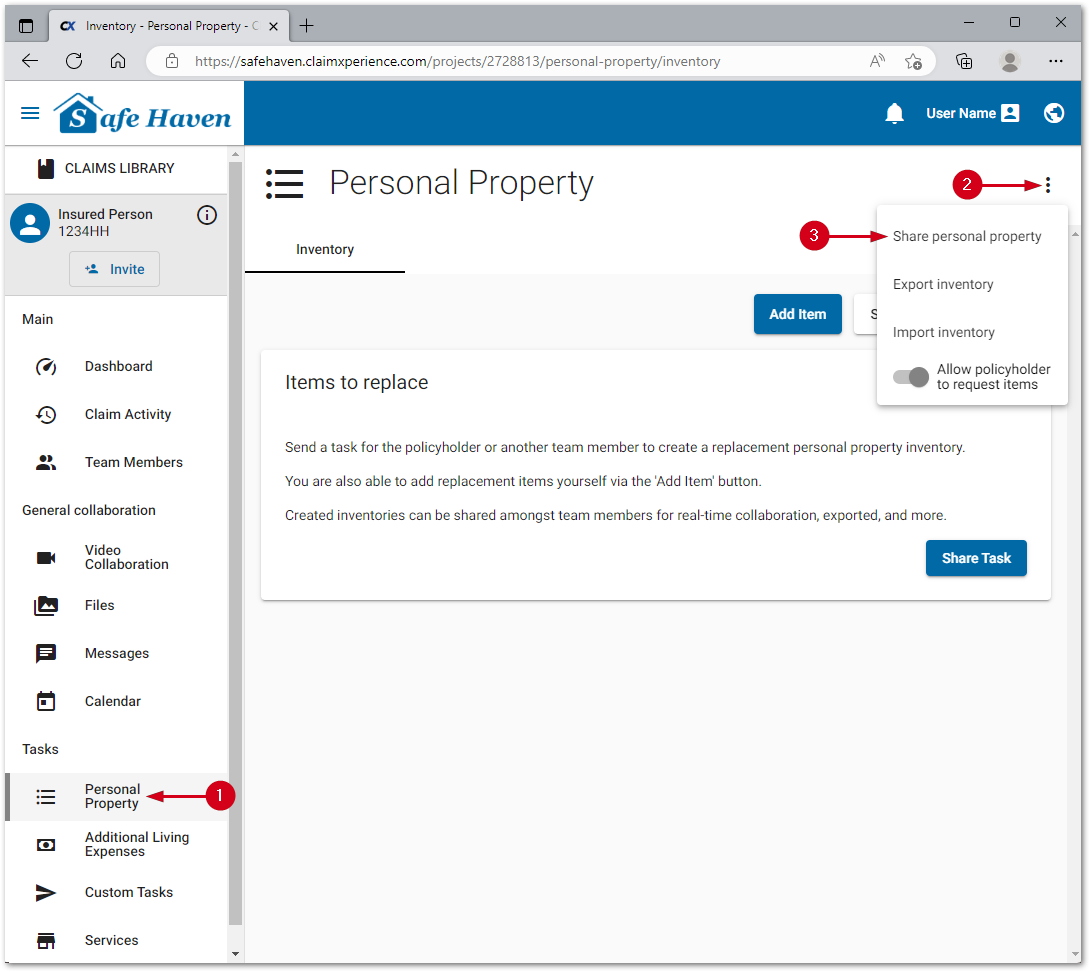
- From within a project, click Personal Property.
- Open the menu.
- Select Share personal property.
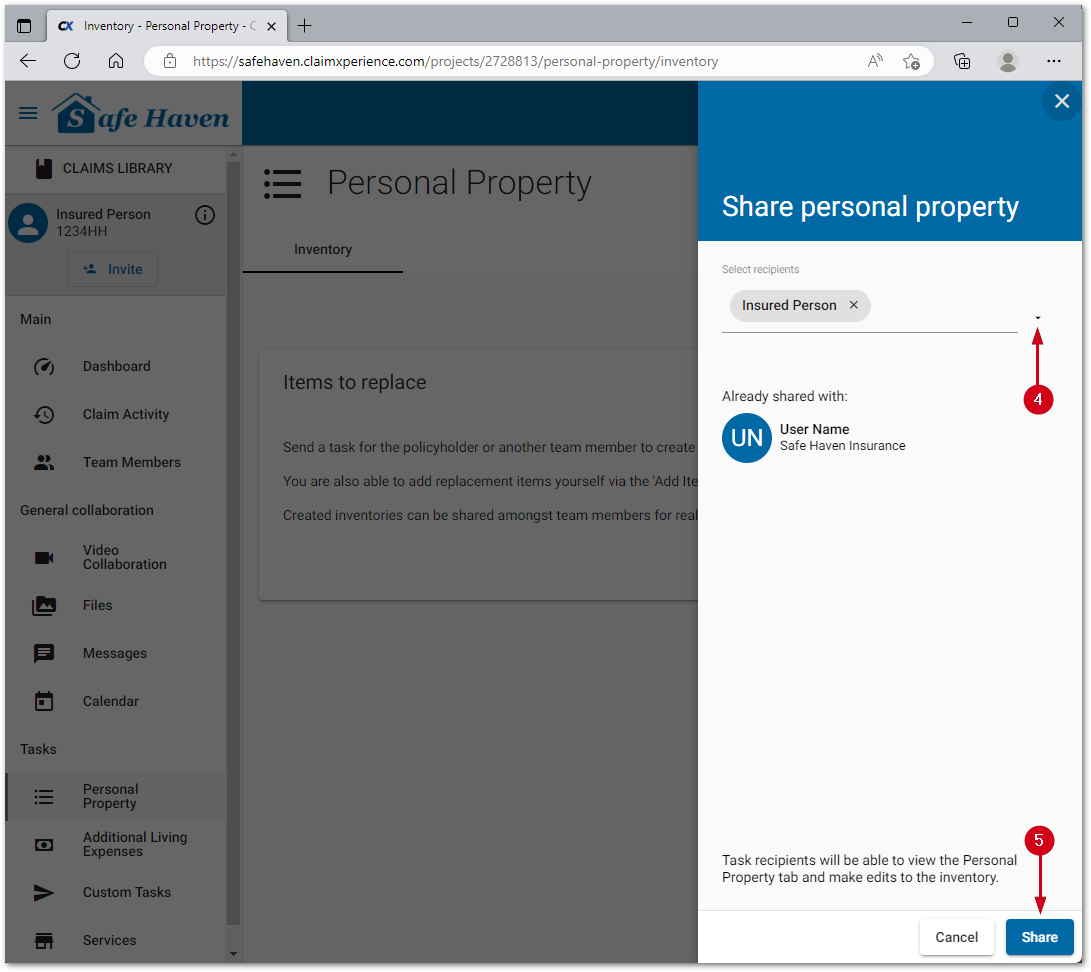
- Select the desired recipient(s).
- Select Share.
Assign custom tasks from the Project Library
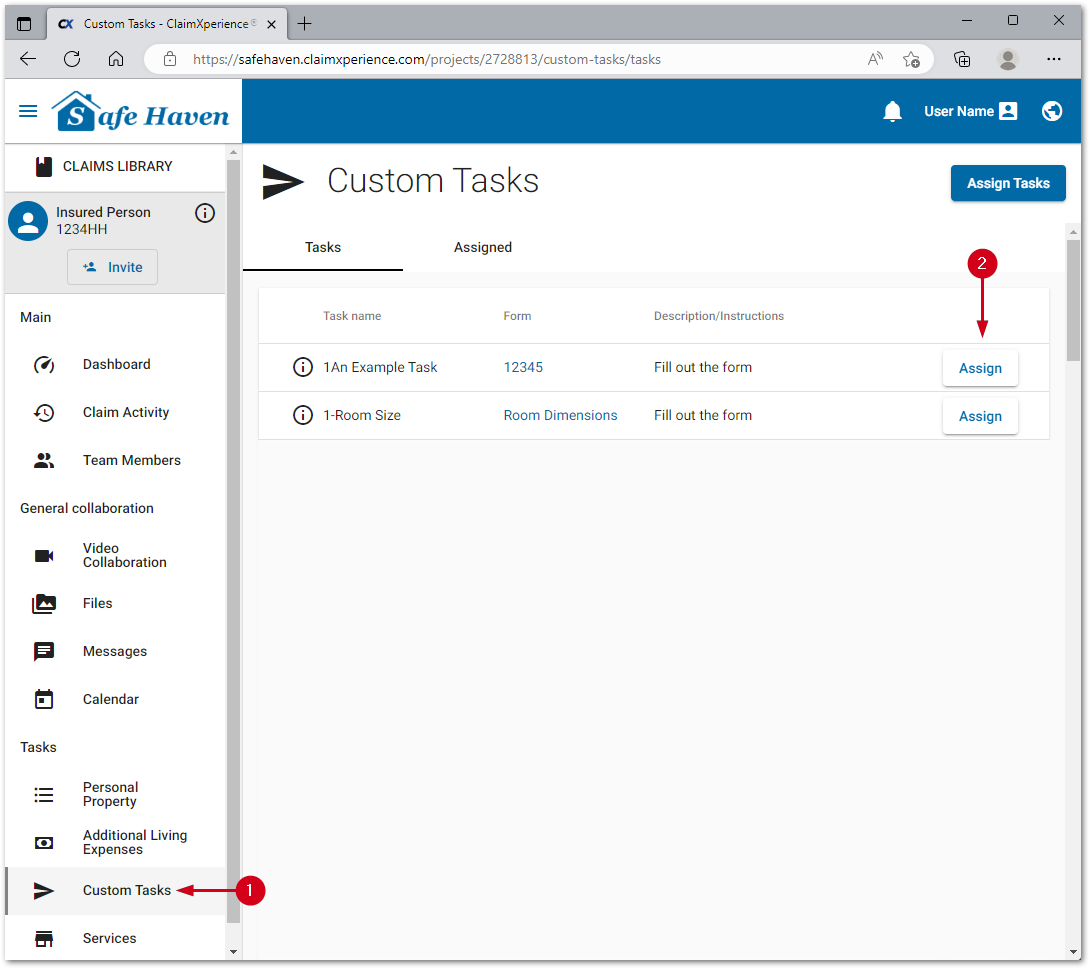
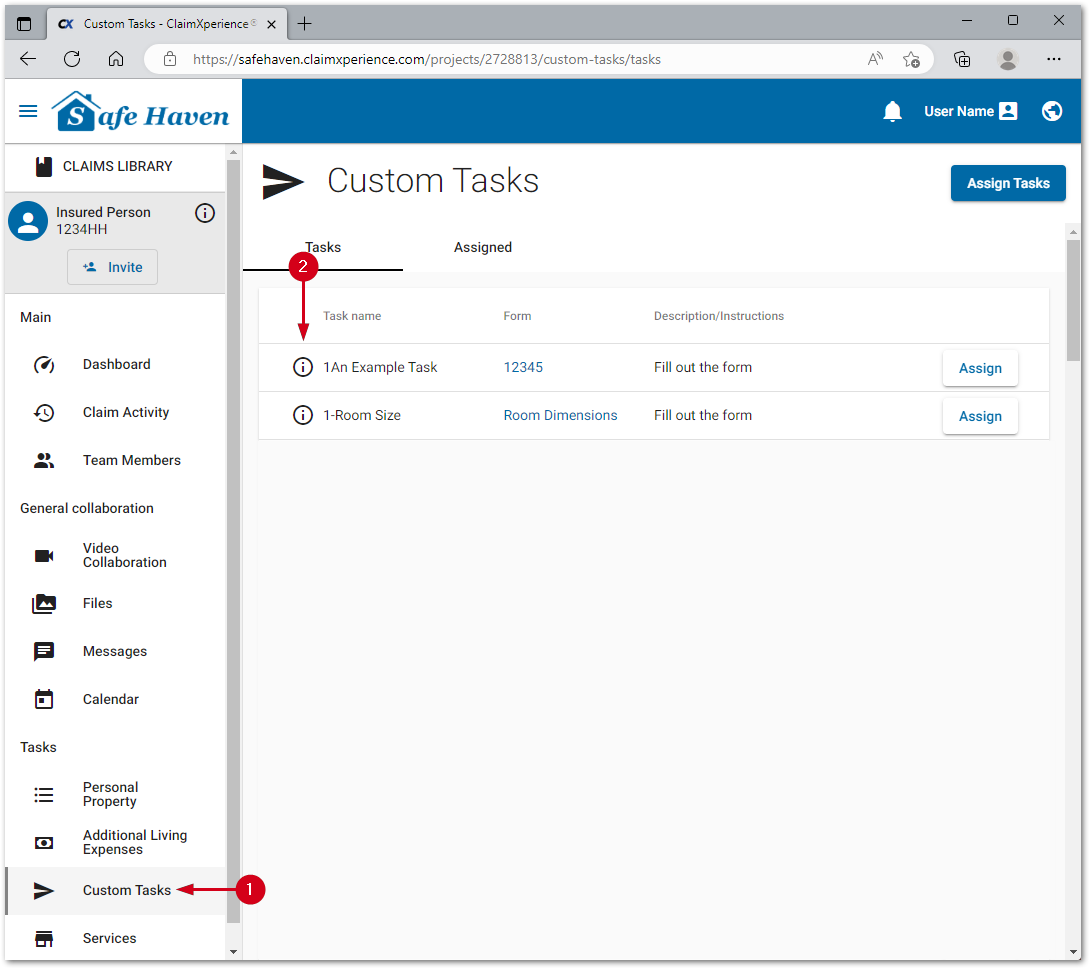
- From within a project, click Custom Tasks.
- Select Assign for the desired task.
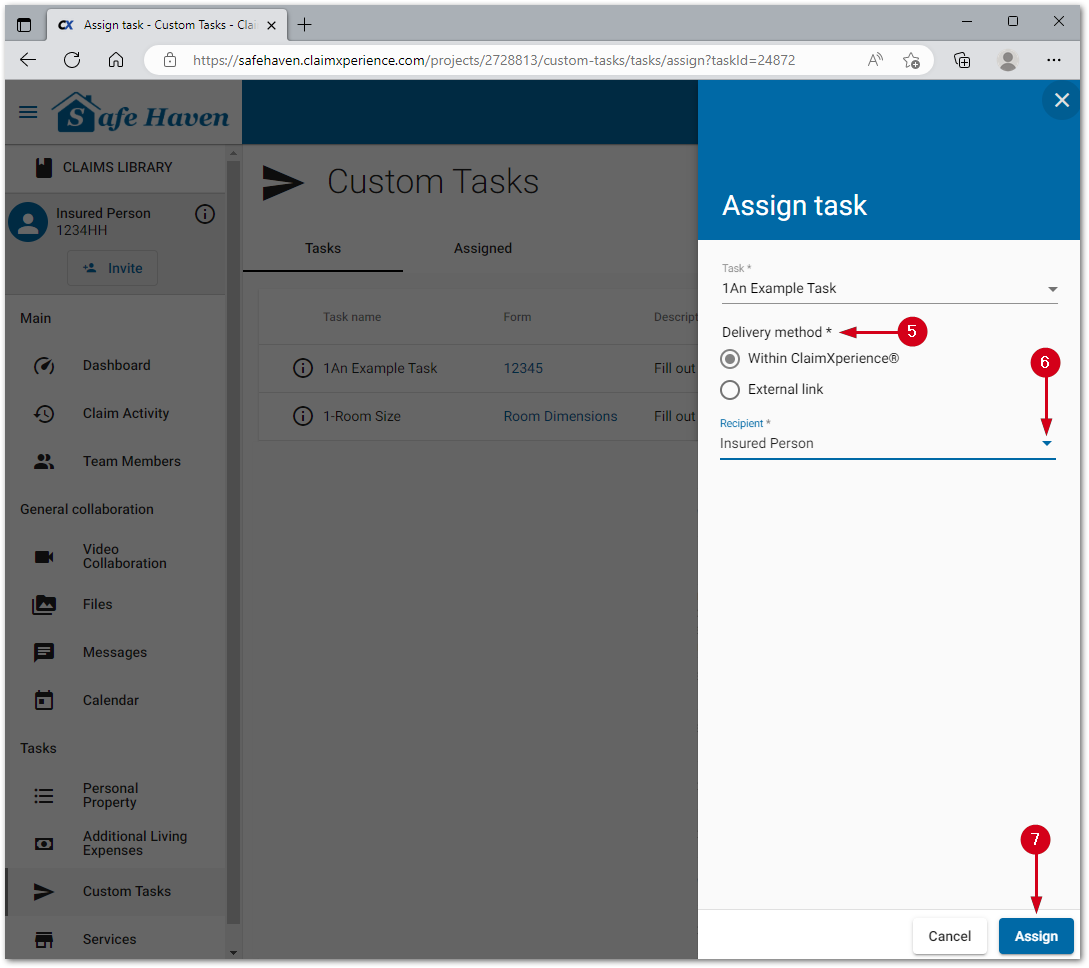
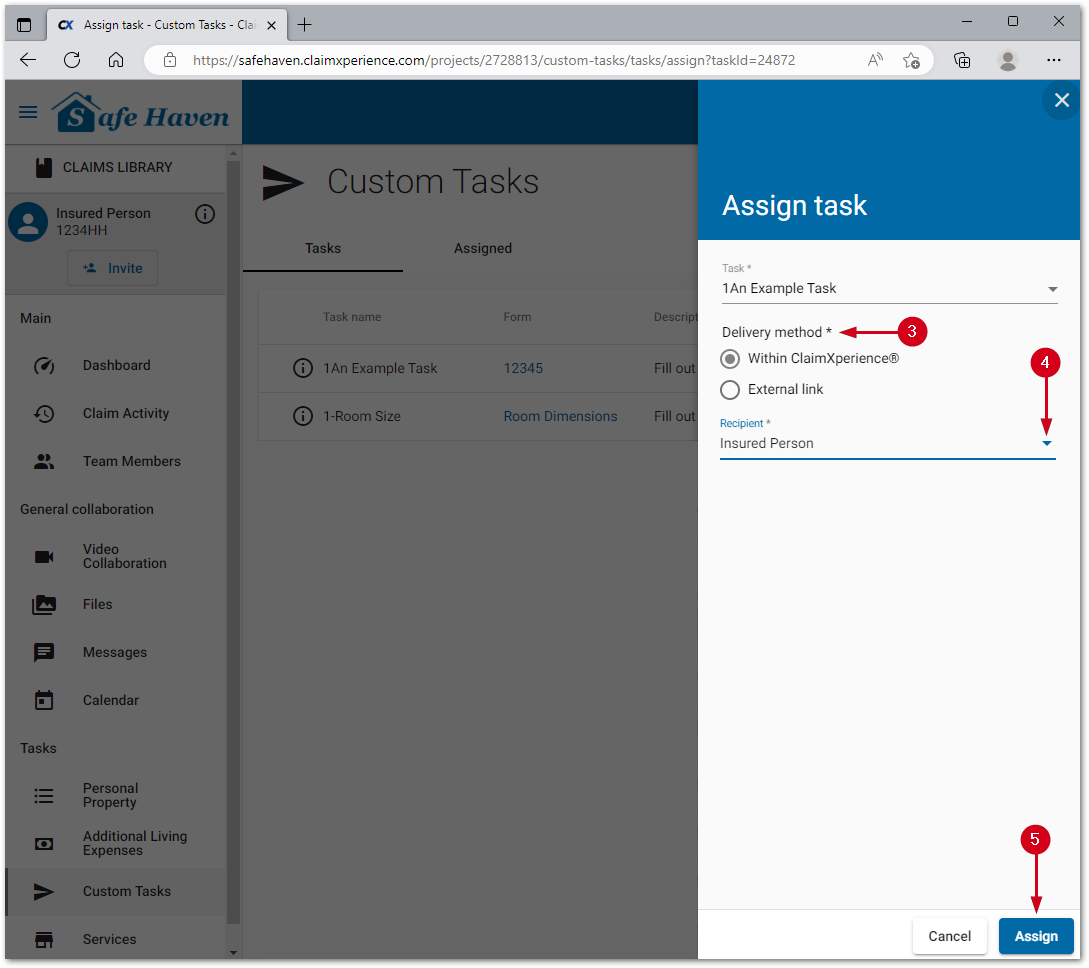
- Select the Delivery method.
Note: If a task can be sent externally, then the delivery method options will show. Otherwise, just select a recipient.
- Select the Recipient.
- Select Assign.
Note: Some tasks may require some additional information. If needed, click Next to complete the required information.
Assign custom tasks from the form preview
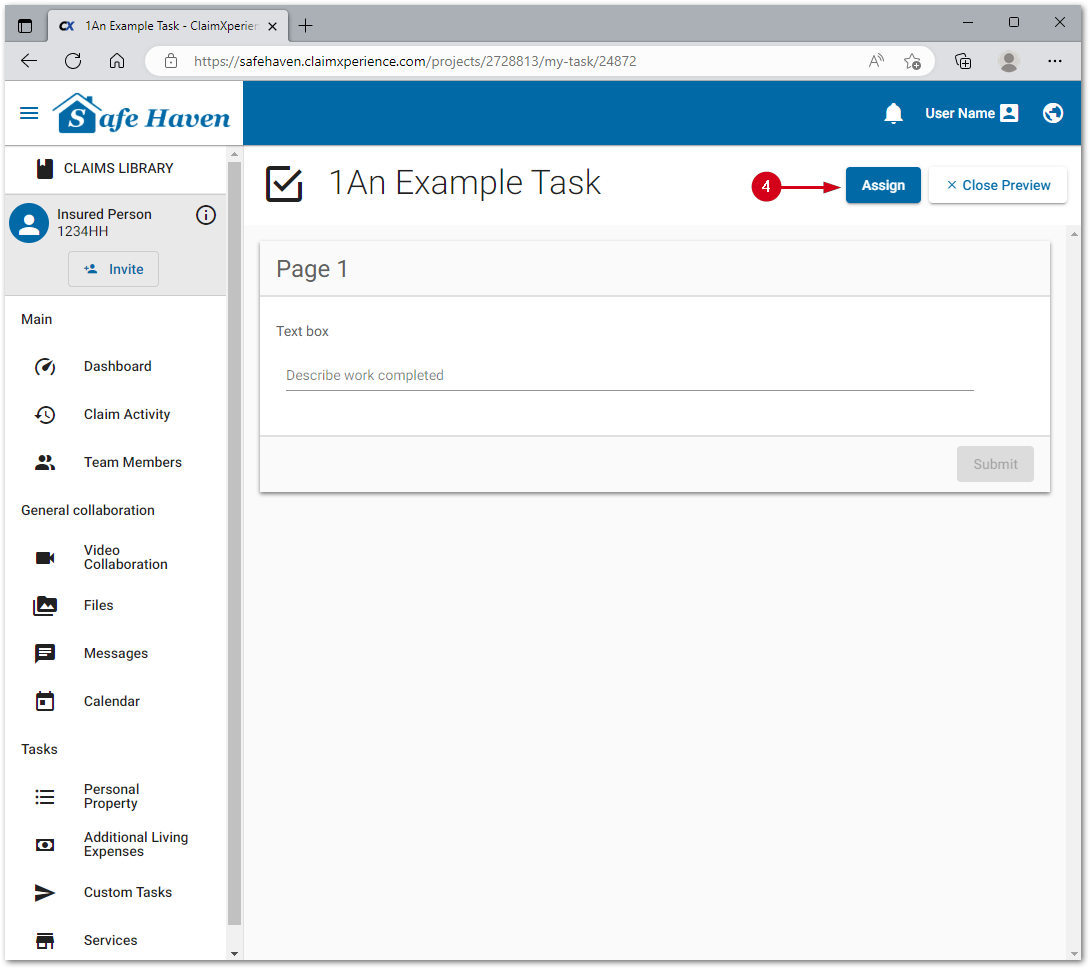
Tasks can also be assigned when viewing the form preview for a custom task.
- From within a project, click Custom Tasks.
- Select the information icon by the desired task.
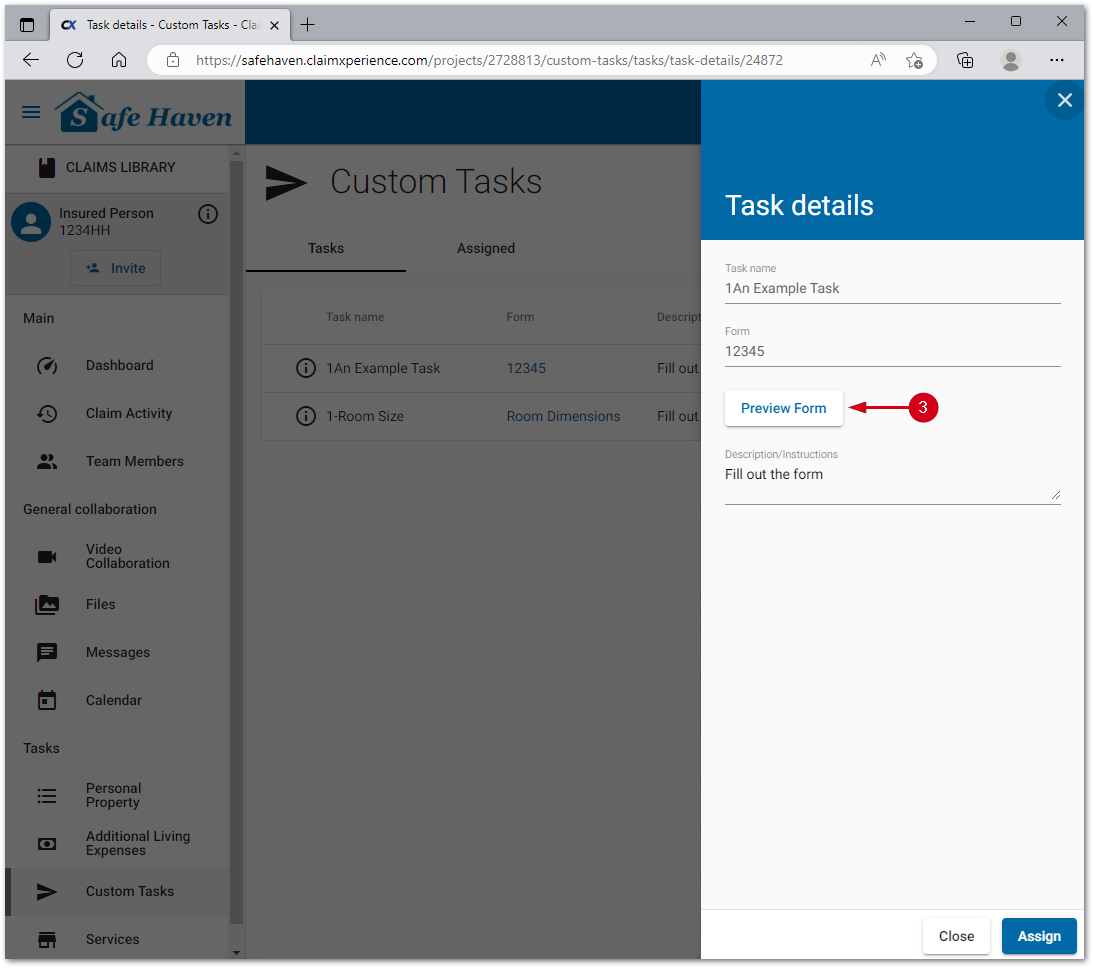
- Select Preview Form.
Note: You can also click the name of the form in the custom task list.
- Select Assign.
- Select the Delivery method.
Note: If a task can be sent externally, then the delivery method options will show. Otherwise, just select a recipient.
- Select the Recipient.
- Select Assign to send the task.
Note: Some tasks may require some additional information. If needed, click Next to complete the required information.